Tutorial
HOW TO USE VIENNAPTM
Once ViennaPTM (and optionally GROMACS) is installed (see the Installation page for all necessary steps), there are multiple ways to run it.
The entrypoint provides quick and easy usage via the command line (CLI) or a configuration file. The Application Programming Interface (API) offers more flexibility and is recommended for batch processing or advanced user modifications.
This tutorial starts with an example of CLI usage.
COMMAND LINE
1. Environment
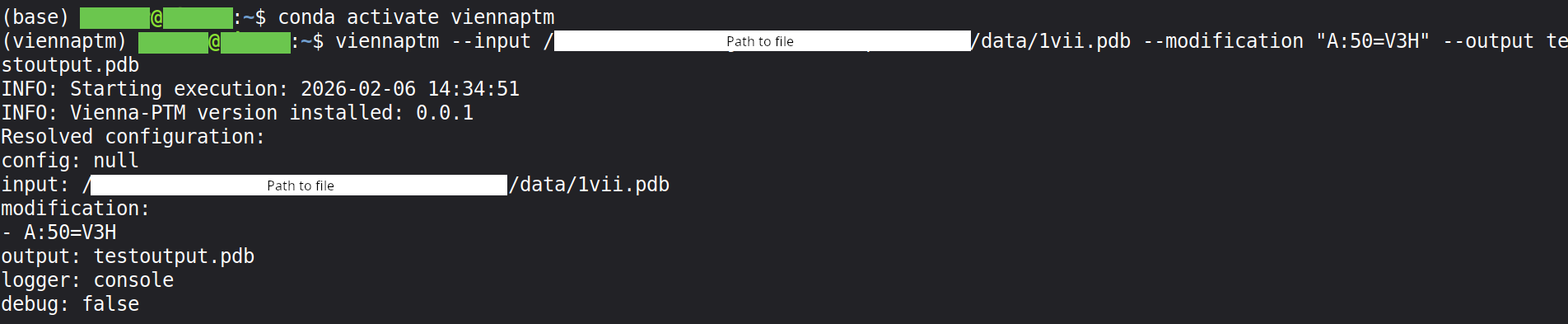
To run ViennaPTM, first activate the conda environment in your terminal:
conda activate viennaptm

2. Run
Next, use the entrypoint command to generate the desired post-translational modifications. For detailed explanations of available parameters, see the Entrypoint page.
viennaptm --input tests/data/1vii.pdb \
          --modify "A:50=V3H" \
          --output testoutput.pdb

3. Finish
Congratulations! You have generated your first ViennaPTM run. The modified structure is now saved in the output file (here: “testoutput.pdb”).
CONFIG FILE
For repetitive runs, a configuration file can be useful as it reduces the risk of typos or mistakes.
1. Generate file
Start by creating a YAML config file containing the desired parameters. See the Entrypoint page for a full list of options.
Example config file:
input: ./tests/data/1vii.pdb
modify:
  - "A:50=V3H"
output: output.pdb
logger: console
debug: false
Another example:
input: ./tests/data/1vii.cif
modify:
  - "A:50=V3H"
  - "A:55=GSA"
  - "A:60=ASN"
output: output.pdb
logger: logger_test_file
debug: true
NOTE: JSON format can also be used, which can be convenient for REST endpoints.
2. Run
Run the config file via the terminal:
viennaptm --config tests/data/example_config.yaml

3. Selectively override
You can override specific parameters on the command line. For example, to redirect logging to a file instead of the console:
viennaptm --config tests/data/example_config.yaml --logger file
Multiple parameters can be changed at once. For example, to change both the logger and the input file:
viennaptm --config tests/data/example_config.yaml --logger file --input tests/data/1vii.cif
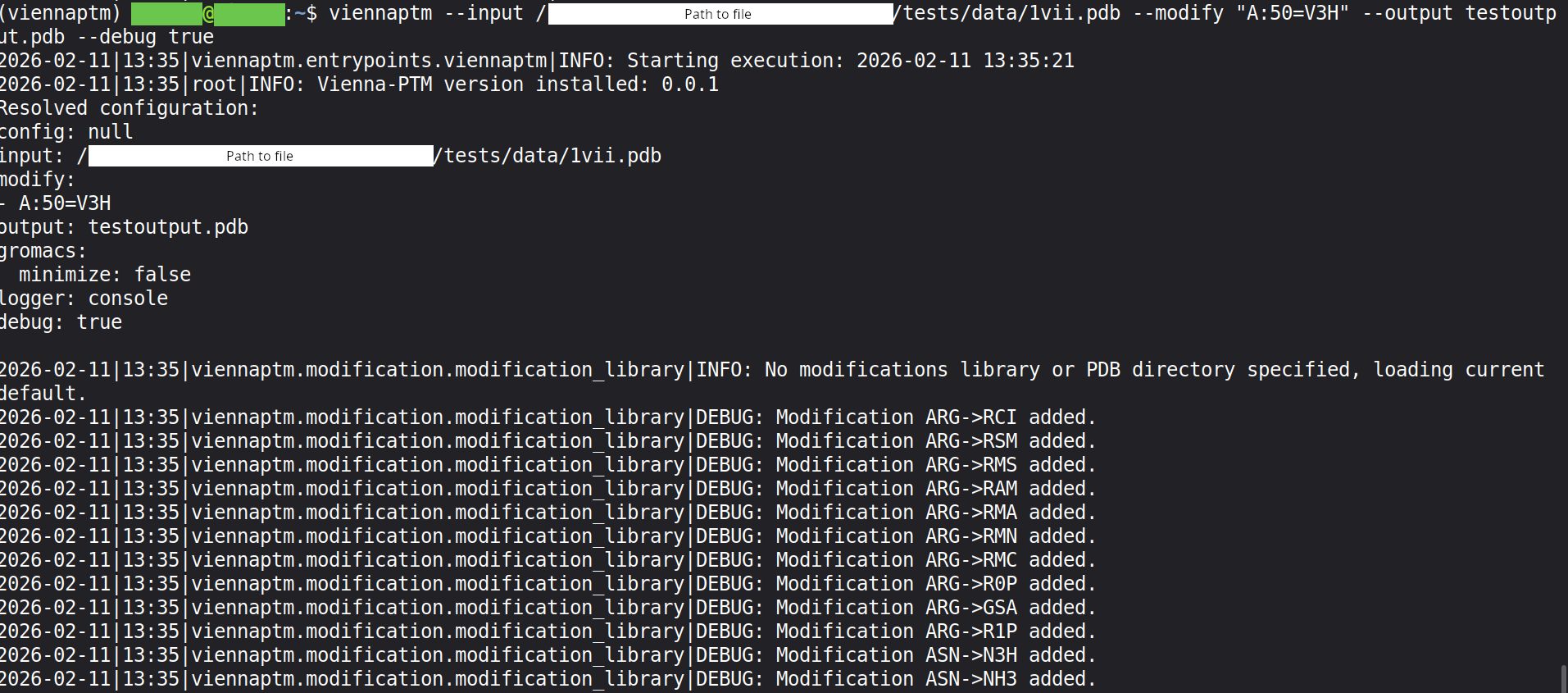
4. Logger details
ViennaPTM uses Python’s logging module. Log levels indicate the severity or importance of messages:
- DEBUG
Purpose: Detailed information useful for diagnosing problems and understanding the program’s internal state.
Use case: Outputs every step of a calculation, data transformation, or function call.
Visibility: Only shown if the logger is set to DEBUG.
- INFO
Purpose: General information about the progress of the program.
Use case: High-level messages a user or developer might want to see during normal operation.
Visibility: Shown if the logger is set to INFO or lower (DEBUG also shows INFO).
- WARNING
Purpose: Indicates something unexpected or potentially problematic, but not fatal.
Use case: Non-critical issues, such as missing optional data or minor inconsistencies.
Visibility: Always shown if the logger level is WARNING or lower.
viennaptm --config tests/data/example_config.yaml --debug true